WordPress Booking System Setup: An Admin’s Guide

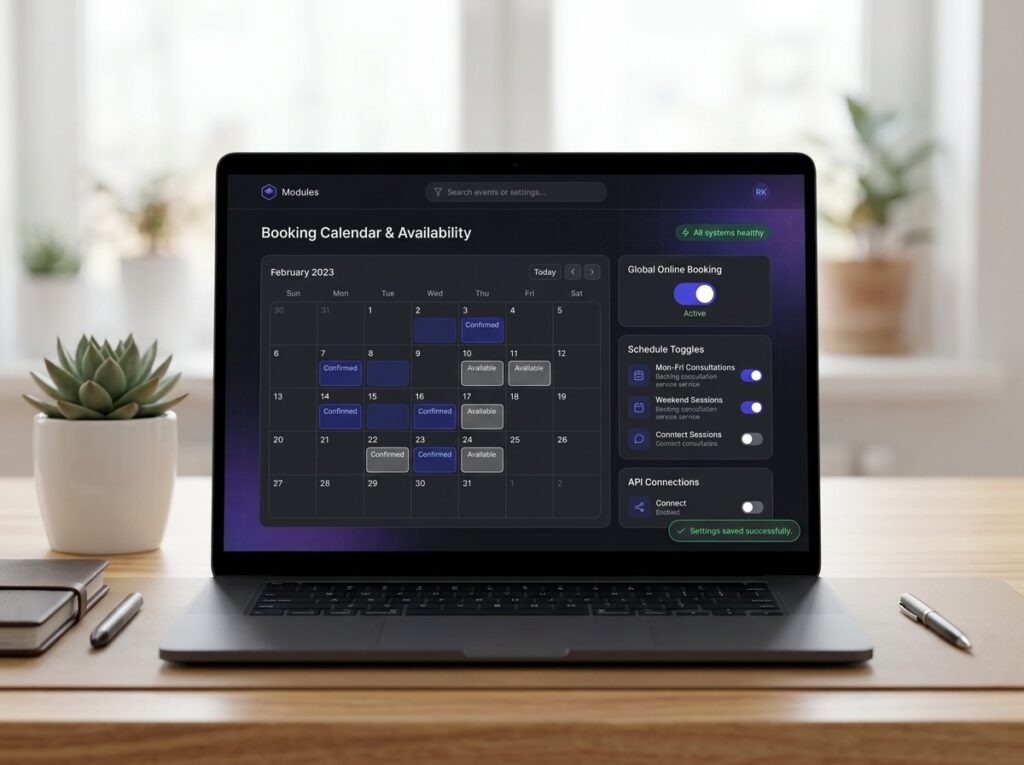
A well-configured wordpress booking system should feel almost invisible once it is live — clients pick a slot, pay or leave a deposit, get reminded, and show up, while you spend your time on the work itself rather than on the admin around it. The problem is that most booking setups are built once, in a hurry, and then quietly generate friction forever: double bookings, back-to-back appointments with no travel time, no-shows, and a calendar that only exists inside WordPress.
This guide takes the opposite approach. Instead of walking through every setting, it focuses on the decisions that make the booking process genuinely easy to manage week after week — and how to configure the WPStack Booking module to support them.

Start with the shape of your services, not the calendar
Almost every messy booking setup starts the same way: someone creates one generic “Appointment” and tries to patch the differences later with notes and manual emails. Model your services properly first and the calendar largely configures itself.
In WPStack Booking, each service carries its own duration and price, and a single service can offer several duration and price options. That means a consultation can be sold as 30, 60 or 90 minutes without cloning it three times, and the availability engine automatically reserves the right amount of time for whichever option the client chooses.
- List every distinct thing you sell — if the length, price or the person delivering it differs, it is a separate service or a separate duration option.
- Attach the right providers — assign staff to the services they actually deliver so clients never book someone who cannot perform it.
- Decide what shares a slot — multiple services can share the same time slot when that reflects how you really work.
- Set prices deliberately — prices drive deposits and payment later, so get them right at the service level rather than negotiating case by case.
Keep the service list short
A booking form with 25 options is a booking form nobody completes. Group variations into duration and price options on a single service wherever you can. Fewer, clearer choices reduce both client hesitation and your own maintenance burden.
Protect your day with working hours, buffers and daily limits
This is the part that most directly determines how manageable your schedule feels. Availability is not just “when am I open” — it is “what pattern of bookings can I actually sustain”.
Set working hours per provider so the frontend only ever offers time you are genuinely willing to work. Then add buffers around appointments. Buffer time is what turns a theoretically full calendar into a workable one: room to write notes, clean a room, travel between locations, or simply breathe before the next client.
Daily limits are the quiet hero here. Capping how many appointments a provider can take in a day prevents the classic failure mode where an open calendar gets filled to exhaustion by an unusually busy week. Configure the ceiling once and the booking form enforces it for you, without you having to close slots manually.
Make money collection part of the booking, not a follow-up task
Chasing payment after the fact is admin you can design out. WPStack Booking takes deposits or full payment at the time of booking through Stripe or PayPal, so the commitment and the transaction happen in the same step.
A practical rule of thumb:
- Full payment up front for short, fixed-price, high-demand services where no-shows are expensive.
- A deposit for longer or higher-value appointments where clients want reassurance before paying in full.
- No payment only for genuinely exploratory calls — and even then, consider a small deposit if no-shows are a pattern.
Because prices live on the service (and on each duration option), the amount collected follows automatically from what the client selected. There is no separate invoice step to remember.
Automate the reminders and hand rescheduling back to the client
Two things eat the most admin time in any booking operation: reminding people, and moving appointments. Both can be automated.
Enable email and SMS reminders so confirmations and pre-appointment nudges go out without anyone touching them. Then give clients a secure link that lets them reschedule or cancel on their own. This sounds like a small convenience; in practice it removes a large share of inbound messages and phone calls, and it means changes land in your calendar accurately rather than being relayed and mistyped.
Crucially, client-side rescheduling still respects your working hours, buffers and daily limits — so self-service never produces a slot you did not want to offer.
Get every appointment onto the calendar you already use
A booking plugin that only shows appointments inside WordPress creates a second source of truth, and second sources of truth always drift. WPStack Booking keeps appointments in one calendar view in the admin and syncs two ways with Google and Outlook, so a personal event blocked in your own calendar closes the matching slot on the site, and a new booking appears where you actually look.
For staff who should not have a WordPress login, there is a private iCal subscription link — including a QR code — that drops that provider’s bookings straight onto their phone. It is the fastest way to onboard a contractor or a part-time team member: they scan, subscribe, and see their own schedule with no account to manage and no extra permissions to audit.
A repeatable launch checklist for your wordpress booking system
Work through this in order and you will avoid most of the rework people do after going live with a wordpress booking system:
- Create services with correct durations, duration/price options and assigned providers.
- Set working hours per provider, then add buffers and daily limits.
- Choose deposit or full payment per service and connect Stripe or PayPal.
- Turn on email and SMS reminders and check the wording.
- Connect Google or Outlook two-way sync; issue iCal subscription links to providers who do not log in.
- Place the booking form on a real page, then book a live test appointment end to end — including rescheduling and cancelling from the client link.
The test booking matters more than anything else on the list. Booking one appointment as a client, paying, receiving the reminder and then moving it yourself will surface every gap faster than reading settings screens. If you are also tidying up the page it sits on, the WordPress block editor documentation is a useful refresher on layout and blocks.
Maintain it in fifteen minutes a month
Once live, treat the setup as something you review rather than rebuild. Each month, scan the calendar for patterns: slots that never sell, days that consistently run over, services clients ask to change. Adjust working hours, buffers or daily limits in response to what actually happened, not what you assumed at launch.
Because the frontend inherits your theme’s styling, these changes stay purely operational — you are tuning availability and money, not redesigning a page. That separation is what keeps the whole thing easy to manage long term.
FAQ
How do I stop back-to-back bookings without closing slots manually?
Use buffers. Adding buffer time around each appointment removes the immediately adjacent slots automatically, and combining that with a daily appointment limit caps how much any single day can be filled.
Can clients change their own appointments?
Yes. Clients get a secure link that lets them reschedule or cancel themselves, and any change still has to fit your working hours, buffers and limits.
Do staff need a WordPress login to see their schedule?
No. You can issue a private iCal subscription link with a QR code so a provider’s bookings appear on their phone without any login or account.
Should I take a deposit or full payment?
Take full payment for short, fixed-price services where no-shows are costly, and a deposit for longer or higher-value appointments. Both are supported through Stripe or PayPal at the moment of booking.